
Giới thiệu
Bài viết này sẽ hướng dẫn bạn xây dựng một hệ thống phát nhạc thông minh hoàn chỉnh, cho phép:
-
Kết nối loa Bluetooth với máy chủ Ubuntu
-
Tích hợp với Home Assistant để tự động hóa
-
Phát nhạc theo lịch trình và kịch bản thông minh
-
Điều khiển bằng giọng nói qua Home Assistant
📋 Kiến trúc hệ thống
Loa Bluetooth (ZK-502L)
        │
        ▼
Máy chủ Ubuntu (192.168.3.5) - Bluetooth Adapter
        │
    ┌───┴──────────────────────────────────────┐
    │                                           │
    ▼                                           ▼
Music Assistant (Port 8095)               Home Assistant (192.168.3.2:8123)
    │                                           │
    └───────────────┬───────────────────────────┘
                    ▼
          Sendspin Bluetooth Bridge
                    │
                    ▼
          Tự động hóa phát nhạc theo lịch
          Điều khiển bằng giọng nói
          Thông báo TTS thông minh
🖥️ Phần 1: Kết nối Bluetooth trên Ubuntu
Yêu cầu
-
Máy chủ Ubuntu 20.04/22.04/24.04
-
USB Bluetooth adapter (khuyến nghị chip CSR, hỗ trợ tốt trên Linux)
-
Loa Bluetooth (model ZK-502L)
Cài đặt driver và gói Bluetooth
# Cập nhật hệ thống
sudo apt update && sudo apt upgrade -y

# Cài đặt các gói Bluetooth cần thiết
sudo apt install pulseaudio pulseaudio-module-bluetooth bluez bluez-tools -y
Kiểm tra adapter Bluetooth
# Kiểm tra thiết bị USB
lsusb | grep -i bluetooth
# Kết quả mong đợi: Bus 001 Device 005: ID 0a12:0001 Cambridge Silicon Radio, Ltd Bluetooth Dongle

# Kiểm tra module kernel
lsmod | grep btusb

# Kiểm tra trạng thái adapter
hciconfig -a
Ghép đôi loa Bluetooth
# Vào giao diện điều khiển Bluetooth
bluetoothctl

# Trong bluetoothctl, thực hiện:
power on
agent on
default-agent
scan on
Bật loa ở chế độ ghép đôi, khi thấy tên loa (ZK-502L) xuất hiện, ghi lại địa chỉ MAC (ví dụ: AE:41:76:52:31:13)
# Dừng quét
scan off

# Ghép đôi với loa
pair AE:41:76:52:31:13

# Tin tưởng loa (tự động kết nối sau này)
trust AE:41:76:52:31:13

# Kết nối
connect AE:41:76:52:31:13

# Thoát
exit
Cấu hình âm thanh
# Kiểm tra card âm thanh Bluetooth
pactl list cards short | grep bluez

# Chuyển sang chế độ A2DP (chất lượng cao)
pactl set-card-profile bluez_card.AE_41_76_52_31_13 a2dp-sink

# Kiểm tra sink đầu ra
pactl list sinks short | grep bluez

# Đặt làm mặc định
pactl set-default-sink bluez_sink.AE_41_76_52_31_13.a2dp_sink

# Kiểm tra âm thanh
sudo apt install alsa-utils -y
speaker-test -t sine -f 440 -l 1
🎵 Phần 2: Cài đặt Music Assistant
Music Assistant là trái tim của hệ thống, quản lý thư viện nhạc và kết nối với các player.
Tạo thư mục và cấu hình
# Tạo thư mục cho Music Assistant
mkdir -p ~/music-assistant && cd ~/music-assistant

# Tạo thư mục nhạc (nếu chưa có)
mkdir -p ~/music_data
Tạo file docker-compose.yml
cat > docker-compose.yml << 'EOF'
services:
  music-assistant:
    image: ghcr.io/music-assistant/server:latest
    container_name: music-assistant
    restart: unless-stopped
    network_mode: host
    privileged: true
    volumes:
      - ./data:/data
      - /home/your_username/music_data:/media:ro
      - /etc/machine-id:/etc/machine-id:ro
    environment:
      - PUID=1000
      - PGID=1000
      - TZ=Asia/Ho_Chi_Minh
EOF
Lưu ý: Thay your_username bằng tên user thực tế của bạn.
Khởi chạy Music Assistant
docker compose up -d
docker logs music-assistant --tail 20
🔗 Phần 3: Cài đặt Sendspin Bluetooth Bridge
Sendspin là cầu nối giữa loa Bluetooth và Music Assistant.
Clone và cấu hình
# Clone repository
git clone https://github.com/trudenboy/sendspin-bt-bridge.git
cd sendspin-bt-bridge

# Tạo file cấu hình
cp config.example.yaml config.yaml
nano config.yaml
Cấu hình mẫu cho loa ZK-502L:
devices:
  - name: "Loa Phòng Làm Việc"
    mac: "AE:41:76:52:31:13"  # Địa chỉ MAC của loa bạn
    auto_reconnect: true
    volume_control: true
    static_delay_ms: 0

bluetooth:
  adapter: hci0
  scan_interval: 30
  reconnect_interval: 10

web:
  enabled: true
  port: 8097
Build và chạy Sendspin
# Build image
docker build -t sendspin-bridge .

# Chạy container
docker run -d \
  --name sendspin-bridge \
  --restart unless-stopped \
  --network host \
  --privileged \
  -v $(pwd)/config.yaml:/app/config.yaml \
  -v /var/run/dbus:/var/run/dbus \
  sendspin-bridge

# Kiểm tra logs
docker logs sendspin-bridge --tail 20
🤖 Phần 4: Kết nối với Home Assistant
Cấu hình Music Assistant
-
Truy cập Music Assistant:
http://192.168.3.5:8095 -
Tạo tài khoản admin lần đầu
-
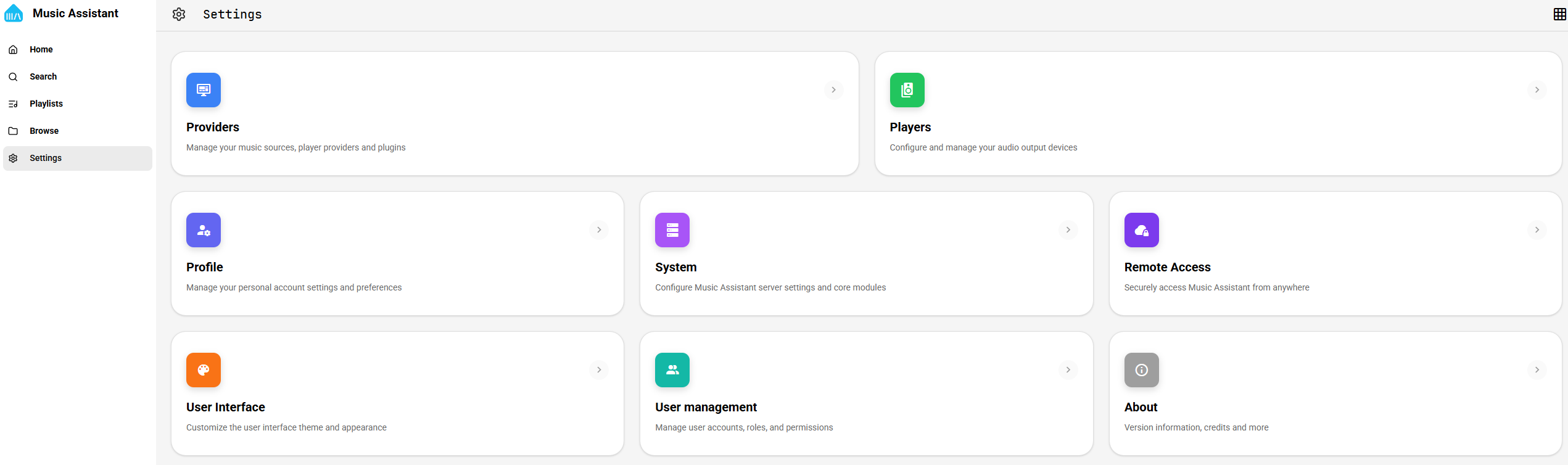
Vào Settings → Providers → Add Player Provider
-
Chọn Sendspin – player sẽ tự động xuất hiện
-
Vào Settings → Core → Stream Server → đặt IP thành
192.168.3.5
Thêm tích hợp vào Home Assistant
-
Truy cập Home Assistant:
http://192.168.3.2:8123hoặchttps://ha.huancoc.com -
Vào Cài đặt → Thiết bị & dịch vụ
-
Nhấn Thêm tích hợp → tìm Music Assistant
-
Nhập URL:
http://192.168.3.5:8095 -
Làm theo hướng dẫn để hoàn tất
Sau khi kết nối thành công, loa của bạn sẽ xuất hiện như thực thể media_player trong Home Assistant.
🎯 Phần 5: Tự động hóa phát nhạc
Tạo playlist trong Music Assistant
-
Vào Music Assistant → Library → Playlists
-
Nhấn Create Playlist → đặt tên “Nhạc không lời”
-
Thêm các bài hát từ thư mục
/media(chính làmusic_datacủa bạn)
Tạo automation trong Home Assistant
Tự động phát nhạc giờ hành chính
alias: "Phát nhạc phòng làm việc - Giờ hành chính"
description: "Tự động phát nhạc không lời từ 8h-17h30 các ngày trong tuần"
trigger:
  - platform: time
    at: "08:00:00"
condition:
  - condition: time
    weekday:
      - mon
      - tue
      - wed
      - thu
      - fri
action:
  - service: media_player.volume_set
    target:
      entity_id: media_player.loa_phong_lam_viec
    data:
      volume_level: 0.3
  - delay:
      hours: 0
      minutes: 0
      seconds: 5
  - service: media_player.play_media
    target:
      entity_id: media_player.loa_phong_lam_viec
    data:
      media_content_id: "Nhạc không lời"
      media_content_type: "playlist"
mode: single
Tự động tắt nhạc cuối ngày
alias: "Tắt nhạc phòng làm việc - Cuối giờ"
trigger:
  - platform: time
    at: "17:30:00"
action:
  - service: media_player.turn_off
    target:
      entity_id: media_player.loa_phong_lam_viec
mode: single
Điều chỉnh âm lượng theo thời gian
alias: "Giảm âm lượng buổi chiều"
trigger:
  - platform: time
    at: "15:00:00"
condition:
  - condition: time
    weekday:
      - mon
      - tue
      - wed
      - thu
      - fri
action:
  - service: media_player.volume_set
    target:
      entity_id: media_player.loa_phong_lam_viec
    data:
      volume_level: 0.2
mode: single
Tích hợp thông báo TTS
alias: "Thông báo có người gõ cửa"
description: "Phát thông báo qua loa khi chuông cửa reo"
trigger:
  - platform: state
    entity_id: binary_sensor.doorbell
    to: "on"
action:
  - service: tts.cloud_say
    target:
      entity_id: media_player.loa_phong_lam_viec
    data:
      message: "Có người gõ cửa!"
mode: single
🎮 Phần 6: Điều khiển bằng giọng nói
Cấu hình qua Home Assistant Cloud (Nabu Casa) hoặc Assist
Thêm câu lệnh tùy chỉnh:
# Cấu hình câu lệnh trong configuration.yaml
intent_script:
  PhatNhacKhongLoi:
    speech:
      text: "Đang phát nhạc không lời"
    action:
      service: media_player.play_media
      target:
        entity_id: media_player.loa_phong_lam_viec
      data:
        media_content_id: "Nhạc không lời"
        media_content_type: "playlist"
  TatNhac:
    speech:
      text: "Đã tắt nhạc"
    action:
      service: media_player.turn_off
      target:
        entity_id: media_player.loa_phong_lam_viec
🖥️ Phần 7: Cấu hình Nginx Proxy Manager
Thêm các proxy host
| Domain | Port | Mục đích |
|---|---|---|
music.huancoc.com |
8095 |
Giao diện Music Assistant |
sendspin.huancoc.com |
8097 |
Dashboard Sendspin |
📁 Phần 8: Quản lý thư mục nhạc
Cấu trúc thư mục
/home/your_username/music_data/
├── Nghệ sĩ A/
│   ├── Album 1/
│   │   ├── 01 - Bài hát 1.mp3
│   │   └── 02 - Bài hát 2.mp3
│   └── Album 2/
├── Nghệ sĩ B/
└── Playlists/
    └── Nhạc không lời.m3u
Upload nhạc qua FileBrowser
-
Truy cập
https://files.huancoc.com -
Đăng nhập
-
Upload file MP3 vào thư mục
music -
Music Assistant sẽ tự động quét và cập nhật
🔧 Phần 9: Quản lý và bảo trì
Các lệnh quản lý thường dùng
# Xem trạng thái container
docker ps | grep -E "music-assistant|sendspin"

# Xem logs
docker logs music-assistant --tail 50
docker logs sendspin-bridge --tail 20

# Restart container
docker restart music-assistant
docker restart sendspin-bridge

# Dừng và chạy lại
cd ~/music-assistant && docker compose down && docker compose up -d
cd ~/sendspin-bt-bridge && docker compose down && docker compose up -d
Backup dữ liệu
# Backup cấu hình Music Assistant
tar -czf music-assistant-backup-$(date +%Y%m%d).tar.gz ~/music-assistant/data/

# Backup cấu hình Sendspin
cp ~/sendspin-bt-bridge/config.yaml ~/sendspin-bt-bridge/config.yaml.backup
🚨 Xử lý sự cố thường gặp
| Vấn đề | Nguyên nhân | Khắc phục |
|---|---|---|
| Không kết nối được Bluetooth | Adapter USB cắm cổng 3.0 | Chuyển sang cổng USB 2.0 |
| Loa không xuất hiện trong Music Assistant | Sendspin chưa kết nối | Kiểm tra logs: docker logs sendspin-bridge |
| Kết nối HA timeout | Sai IP trong cấu hình | Dùng http://192.168.3.5:8095 |
| Âm thanh bị rè | Đang dùng chế độ HSP | Chuyển sang A2DP: pactl set-card-profile ... a2dp-sink |
| Player không khả dụng trong HA | Kết nối tạm thời mất | Khởi động lại Music Assistant và HA |